Your MartechAI profile is the first thing to set up after joining. It only takes two minutes, and it ensures your notifications arrive at the right time, your teammates know who you are, and your account stays secure.
Where to find your profile
Click the gear icon (⚙️) in the top-right corner of any page, then select Manage Workspaces. In the Account Configuration screen, the Profile tab is selected by default — you’ll see all your personal settings right there.
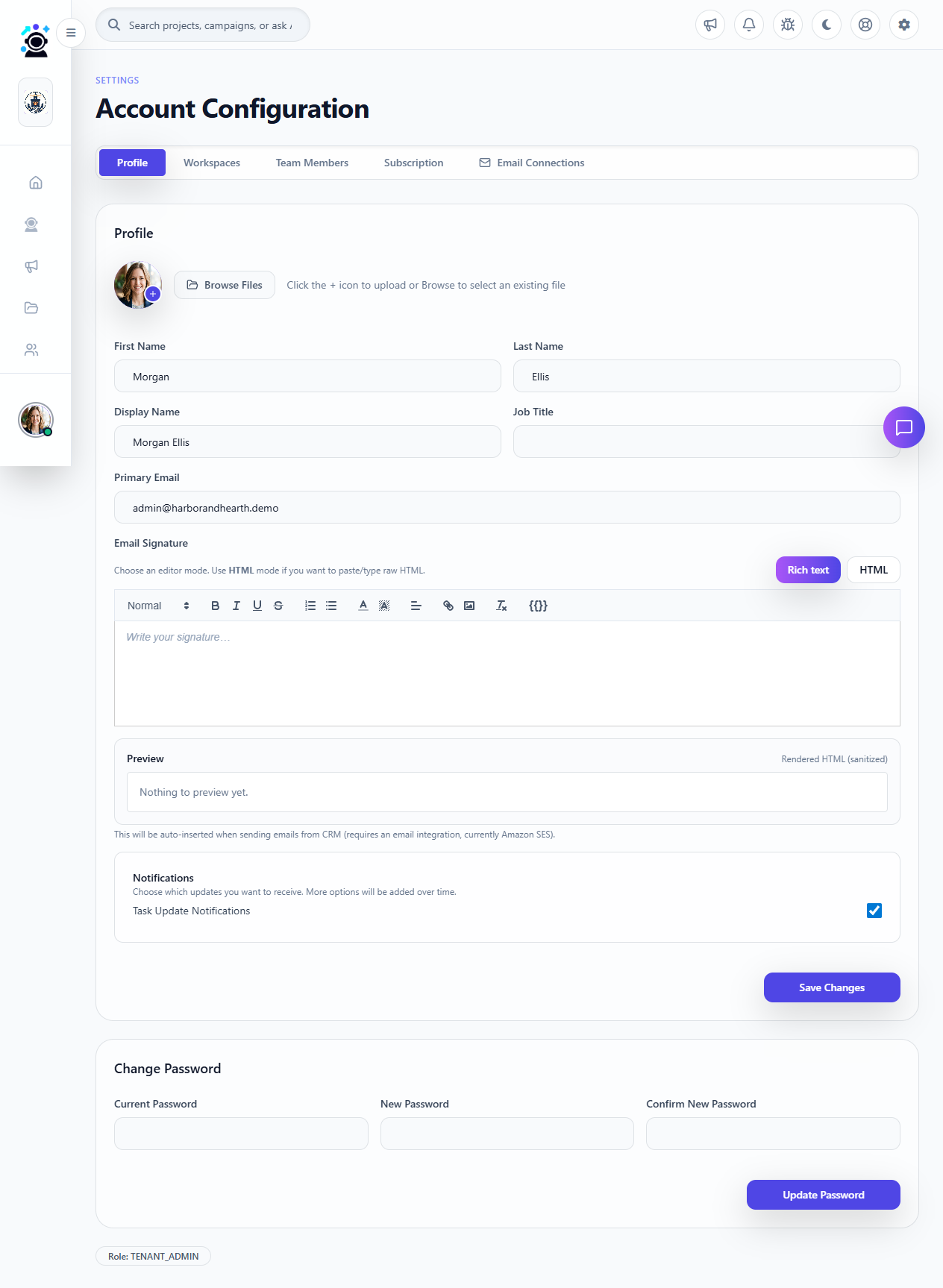
Profile fields explained
- Avatar — Upload a profile photo. This appears in the sidebar, team member lists, and activity feeds. Click the circular image area or Browse Files to upload. Square images work best (minimum 200×200px).
- First Name / Last Name — Your real name. Used in email signatures, notifications, and team rosters.
- Display Name — How your name appears across the platform. Defaults to First + Last, but you can set a nickname or abbreviated name here.
- Timezone — Important! This controls when scheduled campaigns send, when daily reports arrive, and what dates appear on dashboards. Pick the timezone where you work, not where your servers are.
- Email — The address where you receive notifications, password resets, and team invitations. This is read-only after account creation — contact a Tenant Admin if you need to change it.
- Email Signature — Optional. Your email signature appended to outgoing campaign emails. Use the rich text editor to format it — include your name, title, company, phone, and website links.
Notification preferences
Under the signature editor, you’ll find the Notifications section. For now, there’s one toggle:
- Task Update Notifications — When checked (default), MartechAI notifies you when project tasks are assigned to you, completed, or commented on. Uncheck this if you prefer to check task status manually from the Project Management dashboard.
After making any changes, scroll down and click Save Changes.
Changing your password
Below the profile form, the Change Password section lets you update your credentials anytime:
- Enter your current password in the first field.
- Type your new password in the second field.
- Confirm the new password in the third field.
- Click Update Password.
Tips for a strong password: Use at least 12 characters with a mix of uppercase, lowercase, numbers, and symbols. Avoid common words, names, or keyboard patterns. Consider using a password manager — MartechAI works with all major ones.
What’s next?
Your profile is set. Now you’re ready to explore:
- Connect your first integration — Link Google Analytics, Search Console, or social accounts so MartechAI can start pulling your data.
- Invite your team — Head to the Team Members tab and bring in your colleagues with the right roles.
- Explore the Dashboard — Your command center shows live performance metrics, calendar, and quick-launch actions.
Was this article helpful?
Your feedback helps improve the documentation experience.