MartechAI becomes powerful when it’s connected to your real data. Integrations let the platform pull in your email campaigns, website analytics, search rankings, and social media metrics — all in one place. This guide walks you through connecting your first integrations.
Where connections live
All connections are managed in one place. Click the gear icon (⚙️) in the top-right corner, select Manage Workspaces, then click the Email Connections tab. You’ll also see integration status on your Dashboard under INTEGRATION HEALTH — green means connected, grey means not yet linked.
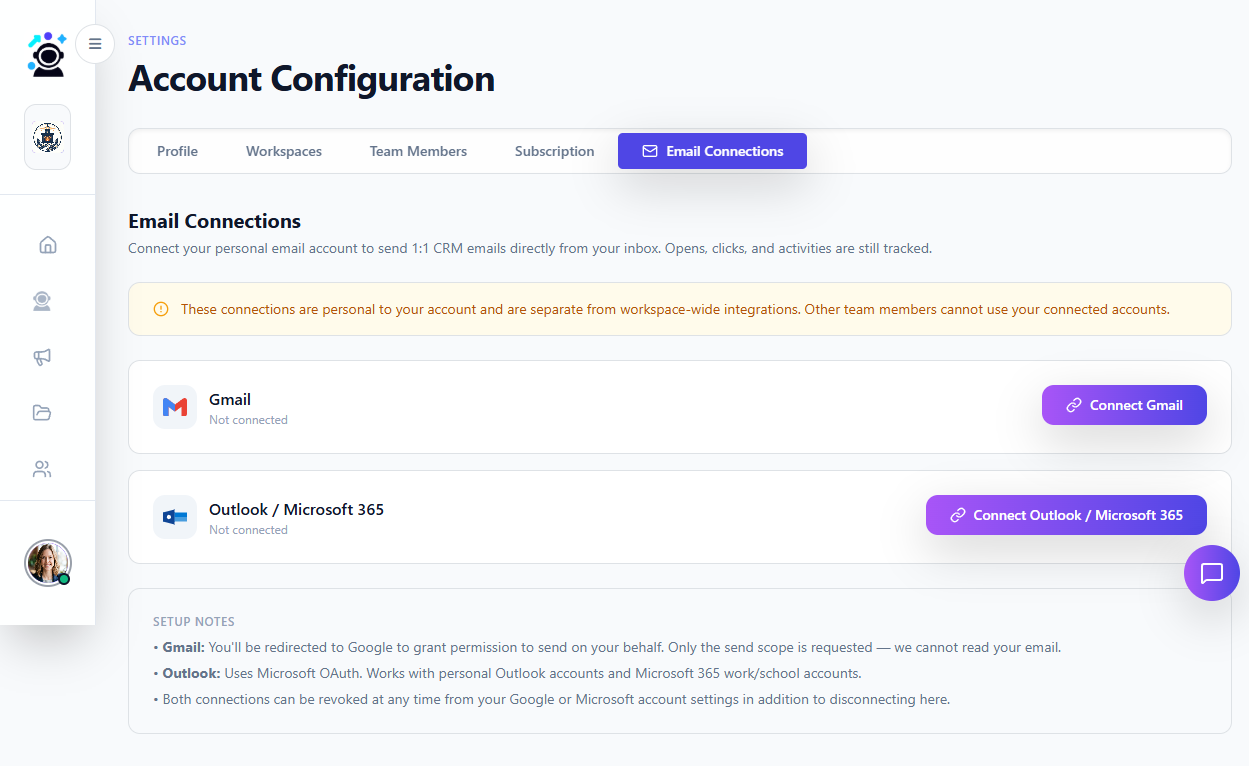
Step 1: Connect your email
Email is the most important integration — it powers your email campaigns, sequences, and notifications.
- On the Email Connections tab, click Connect Gmail (or Connect Outlook / Microsoft 365).
- You’ll be redirected to Google or Microsoft to authorize MartechAI. Sign in with the account you use for business email.
- Review the permissions — MartechAI needs access to send emails on your behalf and read basic profile information. Click Allow.
- You’ll be returned to MartechAI with a confirmation message. Your email is now connected.
Note: The email you connect becomes the default sender for all outgoing campaigns. You can add more email addresses later from the same page. Each connected email can have its own daily sending limits configured by your Tenant Admin.
Step 2: Connect Google Analytics
Connecting Google Analytics gives MartechAI access to your website traffic data — page views, sessions, bounce rates, conversion tracking, and audience demographics.
- Where: Go to Dashboard → INTEGRATION HEALTH → + Add Integration → select Google Analytics.
- What you need: A Google account with access to the GA4 property you want to link. You’ll pick which property and view during setup.
- What it unlocks: Analytics Dashboards populate with your real data. Autopilot can correlate campaign sends with traffic spikes. Reports include live GA4 metrics alongside email and social data.
Step 3: Connect Google Search Console
Search Console feeds MartechAI your search performance data — keyword rankings, click-through rates, impressions, and indexing status.
- Where: Same flow — Dashboard → INTEGRATION HEALTH → + Add Integration → select Google Search Console.
- What it unlocks: The SEO module shows live keyword positions. Keyword Tracking updates daily. Competitor SEO comparison uses your real baseline. The Content Studio suggests topics based on your actual search gaps.
Social media & other integrations
MartechAI also supports connections to:
- Facebook / Instagram — Schedule and publish posts, track engagement metrics.
- LinkedIn — Publish articles and track professional network engagement.
- X (Twitter) — Schedule tweets, monitor mentions.
- Zoho CRM — Bi-directional sync (in development — contact support for early access).
- Zapier — Connect to 5,000+ apps via automated workflows (coming soon).
All integrations are added through the same + Add Integration button on the Dashboard. Once connected, their health status appears in the INTEGRATION HEALTH panel — green for active, grey for disconnected, red for errors.
Managing and disconnecting
To review, reconnect, or remove an integration:
- Go to Dashboard → INTEGRATION HEALTH and click any integration name to see its status, last sync time, and error logs.
- To disconnect, click the integration and select Remove. Your historical data stays — only the live connection is severed.
- Email connections can be managed from Account Configuration → Email Connections at any time.
What’s next?
With your integrations connected, MartechAI starts pulling real data. Here’s what to explore:
- Check your Analytics Dashboards — They’ll now show live data from your website.
- Start adding contacts — Import from CSV or add manually to build your CRM database.
- Create your first campaign — Use connected email and social accounts to launch multi-channel campaigns.
Was this article helpful?
Your feedback helps improve the documentation experience.