Campaigns are the heart of MartechAI — they orchestrate emails, social posts, landing pages, and blog content into a coordinated marketing push. This guide walks you through creating your first campaign from start to finish.
Getting to the Campaigns page
In the left sidebar, expand Marketing and click Campaigns. You will see the Campaign Intelligence dashboard — your command center for managing, optimizing, and scaling your marketing efforts with AI.
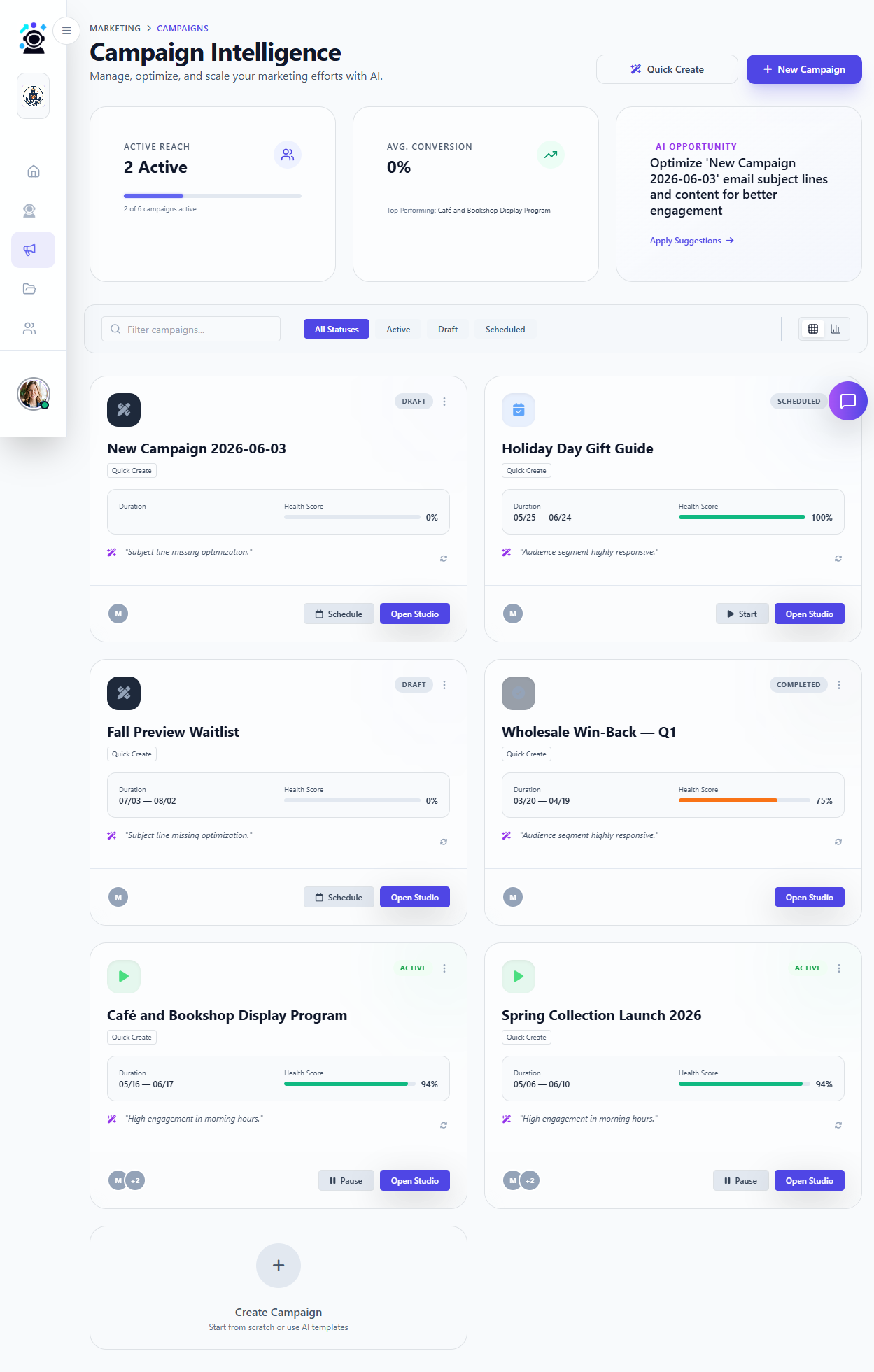
Step 1: Start a new campaign
You have two ways to begin:
- Quick Create — Click the lightning bolt button for a streamlined setup. MartechAI pre-fills basics and you can launch in minutes. Best for simple, single-channel pushes.
- + New Campaign — The full builder. Choose from AI templates or start from scratch. Best for multi-channel, multi-touch campaigns.
Step 2: Name and configure your campaign
Give your campaign a clear, descriptive name — you will thank yourself later when searching through a dozen campaigns. Then configure:
- Goal — What is this campaign trying to achieve? Choose from Awareness, Engagement, Conversion, Retention, or Win-Back. This helps MartechAI optimize content and timing.
- Audience — Pick a segment from your CRM. Target all contacts, a specific segment, or create a new audience on the fly.
- Channels — Select which channels to use: Email, Social Media, Landing Pages, Blog, or SMS. Multi-channel campaigns coordinate messaging across all selected channels.
- Budget — Optional. Set a spending cap for paid channels. MartechAI will alert you if projected spend exceeds your limit.
Step 3: Add content
Click Open Studio on your campaign to enter the content builder. Here you can:
- Create email templates with the Email Builder (drag-and-drop editor with AI-assisted copy).
- Draft social posts with platform-specific previews (Instagram, Facebook, LinkedIn, X).
- Build landing pages with the Landing Page builder (forms, CTAs, hero sections).
- Write blog posts using the Content Studio with AI writing assistance and brand voice enforcement.
Each piece of content can be scheduled independently within the campaign timeline, or you can let MartechAI determine the optimal sequence based on audience behavior patterns.
Step 4: Schedule or launch
When your content is ready, you have three options:
- Start Immediately — Click the play button. The campaign begins sending and posting right away.
- Schedule — Pick a future date and time. Useful for product launches, holiday campaigns, or coordinating with external events.
- Save as Draft — Keep working on it. Draft campaigns appear in your list with a draft badge. Come back anytime.
Step 5: Monitor and optimize
Once live, MartechAI tracks everything in real time. The Campaign Intelligence dashboard shows:
- Active campaigns — How many are currently running.
- Top performing — Which campaign is getting the best engagement, conversions, or revenue.
- AI Opportunities — MartechAI proactively suggests optimizations — better subject lines, ideal send times, underperforming channels to adjust, or audiences to retarget.
Click any campaign card to dive deeper: open rates, click rates, conversions, revenue attribution, and per-channel breakdowns. Use the Apply Suggestions button to let AI optimize in one click, or review recommendations individually.
Campaign statuses
Campaigns move through four states:
- Draft — Still being built. Not visible to your audience.
- Scheduled — Content is ready and will launch at the set date/time.
- Active — Currently running. You can pause or adjust mid-flight.
- Completed — Finished. Results are available for reporting and comparison.
What is next?
Your first campaign is running. Here is what to explore next:
- Build your first email — Master the Email Builder for beautiful, high-converting emails.
- Set up Autopilot — Let AI detect issues and suggest optimizations automatically.
- Check your Reports — See campaign performance alongside website analytics and CRM data.
Was this article helpful?
Your feedback helps improve the documentation experience.