MartechAI workspaces let you manage multiple brands, clients, or business units from a single account — each with its own campaigns, contacts, integrations, and settings. Switching between them takes one click.
Where to find the workspace switcher
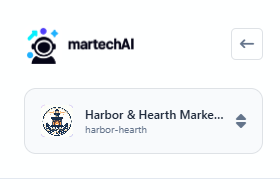
Look at the top of the left sidebar. The workspace switcher displays your current workspace name, a unique slug underneath, and a dropdown arrow on the right.
How to switch workspaces
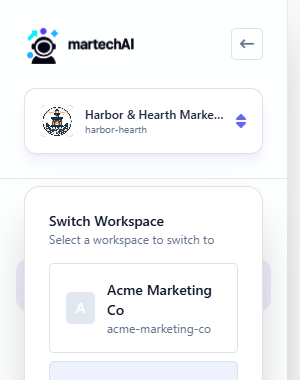
- Click the workspace switcher — the button showing your current workspace name in the sidebar.
- A dropdown panel opens with the heading “Switch Workspace” and a list of all workspaces you have access to.
- The workspace you’re currently in shows a green “Current” badge next to its name.
- Click any other workspace to switch to it. The page refreshes and you’re now operating in that workspace.
After switching
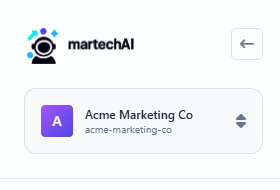
Once you switch, the sidebar updates to show the new workspace name and slug. Your dashboard, campaigns, contacts, and all other data now reflect the selected workspace. Nothing is shared between workspaces — each one is a completely separate environment.
Creating a new workspace
Need a separate workspace for a new client or project? Click the “+ Create New Workspace” button at the bottom of the switcher dropdown. You’ll be guided through naming your workspace, setting its slug, and configuring its initial settings.
Pro tip
Bookmark each workspace’s dashboard separately for quick access. Workspace URLs follow the pattern app.derail-logic.com/dashboard?workspace=your-workspace-slug.
FAQ
Can I be in multiple workspaces at once?
You can only view one workspace at a time, but switching takes less than a second. If you manage multiple brands day to day, we recommend keeping each workspace open in a separate browser tab.
Are my integrations shared between workspaces?
No. Each workspace has its own integrations, brand voice settings, CRM data, and campaigns. When you connect Google Analytics or WordPress in one workspace, it only affects that workspace.
Who can access a workspace?
Workspace access is managed through team invitations. You can invite different team members to different workspaces with different roles. See Inviting Team Members for details.
Was this article helpful?
Your feedback helps improve the documentation experience.