Your CRM starts with contacts. MartechAI gives you a powerful contact management system with import tools, custom fields, segments, and activity tracking — all built in. This guide walks you through adding your first contacts and getting organized.
Getting to the Contacts page
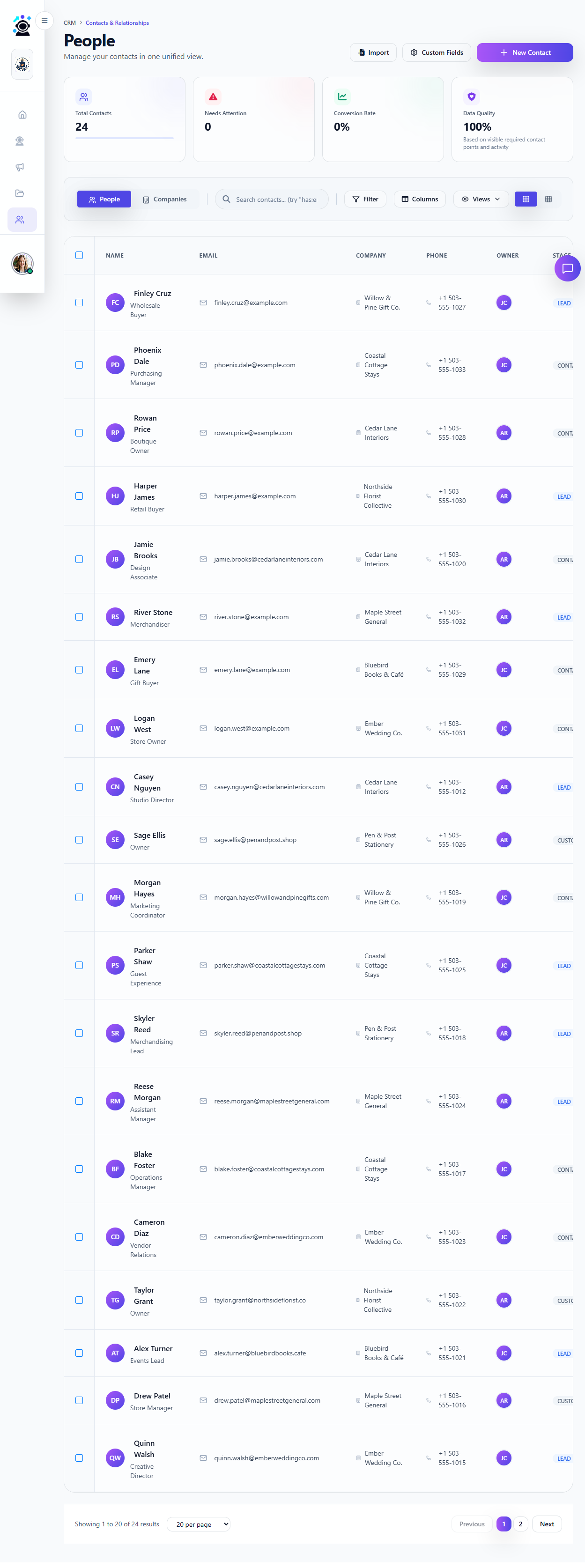
In the left sidebar, expand CRM and Sales and click Contacts. You will land on the People tab — your unified contact database with a spreadsheet-style view, stats bar, and search tools.
Method 1: Add a contact manually
- Click the New Contact button in the top-right of the Contacts page.
- Fill in the contact form: name, email, phone, company, job title, and any custom fields your workspace uses.
- Optionally assign an owner — the team member responsible for this relationship.
- Set the stage (Lead, Contact, Opportunity, Customer, etc.) to track where they are in your pipeline.
- Click Save. The contact appears immediately in your list.
Method 2: Import from CSV
Got a spreadsheet of contacts? Import them in bulk:
- Click the Import button at the top of the Contacts page.
- Upload your CSV file. MartechAI supports standard formats — columns like Name, Email, Phone, Company, and Job Title are auto-detected.
- Map your CSV columns to MartechAI fields. The system suggests matches — review and adjust as needed.
- Choose what to do with duplicates: skip (keep existing), update (overwrite with new data), or create duplicate.
- Click Start Import. A progress bar shows you the status. You can navigate away — the import continues in the background.
Pro tip: Before importing, make sure your CSV has a header row with column names. Clean your data first — remove blank rows, fix malformed emails, and standardize phone number formats. The cleaner the CSV, the smoother the import.
Understanding the Contacts view
Once your contacts are in, the table view gives you quick control:
- Search — The search bar at the top supports smart queries like
has:email(contacts with email addresses) orstage:lead(filter by pipeline stage). - Columns — Click the Columns button to show or hide fields. Add custom columns for data specific to your business.
- Filter — Narrow down by stage, owner, company, tags, or any custom field. Combine filters to create precise views.
- Views — Save your current filters and column layout as a named view. Create views like “Hot Leads” or “Needs Follow-Up” and switch between them instantly.
- Bulk actions — Select multiple contacts with the checkboxes, then assign an owner, change stage, add tags, or delete — all at once.
Stats bar explained
Above the table, four cards give you an instant health check:
- Total Contacts — How many contacts you have. This number grows as you import and add manually.
- Needs Attention — Contacts with overdue tasks, bounced emails, or missing critical fields. Click it to see the list.
- Conversion Rate — Percentage of contacts that moved from Lead to Customer. This updates automatically as you progress deals.
- Data Quality — A score based on how complete your contact records are (email, phone, company, stage). Aim for 90 percent plus for best CRM performance.
Next steps
Your contacts are in. Now make them work for you:
- Create segments — Group contacts by behavior, demographics, or pipeline stage for targeted campaigns.
- Log activities — Track calls, emails, and meetings per contact. The activity timeline builds automatically.
- Move contacts through deals — Assign contacts to deals and track them through your sales pipeline.
- Set up sequences — Automate follow-up emails based on contact stage and activity triggers.
Was this article helpful?
Your feedback helps improve the documentation experience.