



For most small to medium WooCommerce stores, the smartest starting point is a native WooCommerce CRM plugin or a hybrid setup that pairs native tools with a connected SaaS platform. Native integrations give you order history, lifetime value, and subscription status right inside WP Admin, which means faster segmentation without added infrastructure. Full external SaaS integration makes sense once you need multi-person sales pipelines or cross-channel orchestration beyond WooCommerce. The mapping details, migration pitfalls, and setup sequence follow below.
TL;DR:
- Native CRM plugins are suitable for small stores needing quick segmentation and automation directly within WordPress, without the complexity of multi-user workflows or cross-channel campaigns.
- External SaaS CRMs provide advanced team collaboration, multi-channel marketing, and detailed deal pipelines but introduce higher costs, integration complexity, and potential data residency concerns.
- Critical fields for sync include customer email, order totals, subscription status, and payment state, with custom fields requiring explicit mapping and testing before implementation.
- Historical customer and order data usually do not transfer automatically and require manual, middleware, or vendor-assisted migration to enable effective segmentation and lifetime value tracking.
- Building automations such as abandoned cart recovery and renewal reminders first maximizes impact, while staged deployment and thorough sync testing prevent setup errors and customer data issues.
Table of Contents
- What Is WooCommerce CRM Integration, Exactly?
- Which WooCommerce CRM Setup Fits Your Store?
- What Data Must Sync Between WooCommerce and Your CRM?
- Why Historical Order Data Often Doesn’t Transfer
- Which Automation Triggers Should You Build First?
- How Do You Set Up the Integration Without Downtime?
- Why We Recommend a Unified Approach for Growing Stores
- Where MartechAI Fits Into Your Integration Checklist
- Where To Verify Integration Details Yourself
- Sources
- FAQ
What Is WooCommerce CRM Integration, Exactly?
WooCommerce CRM integration means connecting your store’s customer, order, and subscription data to a system built for tracking relationships and running follow-up campaigns. WooCommerce itself stores transactional data. A CRM turns that data into segments, automated messages, and a usable customer record your team can act on without digging through order tables.
There are two structurally different ways to do this, and picking the wrong one early costs you months of rework later.
Native plugins live inside your WordPress installation. They read WooCommerce’s database directly and render customer profiles, order history, and lifetime value right in WP Admin. Refinery CRM is a good example: it builds 360 degree customer profiles with order history and subscription data, and it deliberately loads its CRM assets only inside the admin dashboard so front-end storefront speed doesn’t take a hit.
External SaaS CRMs sit outside WordPress entirely and pull data over an API or through middleware. HubSpot for WooCommerce works this way, syncing customers, orders, and products so your sales team can work pipelines, deal stages, and multi-channel campaigns that a native plugin was never built to handle.
Here’s how the trade-offs typically break down:
- Native plugins give you a single dashboard, no per-seat licensing surprises, and zero extra hosting dependencies, but they rarely support multi-user sales pipelines or advanced marketing sequencing.
- External SaaS unlocks team collaboration, deal stages, and enterprise workflow automation, but it adds a second system to maintain, a monthly bill that scales with contacts, and a sync layer that can break.
- Hosting and data residency matter more with external CRMs. Every sync call passes customer data off your server, so you inherit whatever data handling standards the vendor uses.
- Plugin compatibility can quietly limit you. Some native tools don’t play well with page builders or caching plugins, and some external connectors need specific WooCommerce versions to expose subscription or HPOS data correctly.
- Vendor lock-in creeps in fast with external SaaS. Once your automations, tags, and segments live in a third-party platform, migrating away means rebuilding logic, not just moving data.
- Plan tiers gate real-time sync more often than vendors advertise upfront. Many external CRMs cap sync frequency, field-mapping depth, or historical import volume on entry-level plans, so read the fine print before you commit budget.
The honest answer is that neither approach is universally better. Native plugins solve the “who is this customer and what have they bought” question cheaply. External SaaS solves the “how do I run a sales team across five channels” question, at a real cost in complexity and monthly spend.
Which WooCommerce CRM Setup Fits Your Store?
The right integration approach usually comes down to three factors: how your team is structured, how complex your sales motion is, and whether you’re running subscriptions, B2B accounts, or both.
Here’s how three common store profiles typically shake out:
- Solo operator or small team (1 to 3 people). You’re likely running marketing, fulfillment, and support yourself. A native CRM plugin with built-in automation, like pairing a profile-focused tool with AutomateWoo, covers abandoned-cart recovery and post-purchase follow-up without a monthly SaaS bill. You get behavior-triggered workflows directly from WP Admin.
- Growing SMB (4 to 15 people, multiple sales or marketing roles). This is where a hybrid setup earns its keep. Keep the native plugin for in-dashboard customer visibility, and connect an external CRM or marketing automation platform for campaign orchestration, lead scoring, and team collaboration. This is also the point where a unified marketing automation platform starts outperforming a patchwork of point tools, because it removes the sync layer between CRM and campaign execution entirely.
- Enterprise-like needs (B2B accounts, multi-channel sales, dedicated sales reps). Full external SaaS integration is worth the overhead here. You need deal pipelines, account-based views, and reporting that spans channels WooCommerce doesn’t touch.
Hybrid setups make the most sense when you’ve outgrown a spreadsheet but haven’t outgrown WooCommerce as your core storefront. You keep the native plugin for speed and simplicity on customer lookups, while routing qualified leads or subscription events to an external system for deeper workflow automation.
Pro Tip: Before evaluating any tool, write down your actual sales motion in one sentence. If it’s “customer buys, maybe buys again,” you probably need native. If it’s “customer buys, then a rep follows up across email and calls,” you need external SaaS or hybrid.
Run this 10-minute checklist before you commit:
- Do more than one person need to see and edit customer records simultaneously?
- Do you run WooCommerce Subscriptions, and does the tool explicitly support it?
- Are you selling B2B accounts with multiple contacts per company?
- Does your team need to lead scoring or multi-step nurture sequences beyond cart abandonment?
- What’s your tolerance for a monthly per-contact fee versus a one-time plugin cost?
If you answered yes to two or more, lean hybrid or external. If you answered mostly no, a native plugin will likely cover you for the next year or two.
What Data Must Sync Between WooCommerce and Your CRM?
Before you buy or configure anything, map out exactly which fields need to move, because data mapping is the most common technical blocker in WooCommerce CRM projects. Vendors advertise “full sync” constantly, but “full” usually means standard fields only, and your business-critical data often lives in custom fields the integration was never built to see.
Start with the non-negotiable fields every integration needs to move correctly:
- Customer identity: email address (your primary unique identifier), first and last name, and any external ID your CRM assigns.
- Order data: order totals, SKUs purchased, order status, and timestamps for accurate lifetime value (LTV) and average order value (AOV) calculations.
- Subscription status: active, paused, canceled, and renewal date, which matters enormously if you run recurring revenue.
- Payment status: paid, refunded, failed, since a CRM that doesn’t know about a refund will keep messaging someone who churned.
Custom fields are where most integrations quietly fail. If you collect B2B data at checkout (company name, tax ID, purchase order number) or run a loyalty program with point balances, confirm explicitly, in writing from the vendor, that custom checkout fields map to CRM fields. Don’t assume. Test it with a real order before you sign a contract.
Three technical behaviors deserve scrutiny before you commit to any integration:
Create versus update rules. When a returning customer places a second order, does the integration create a duplicate record or update the existing one? The safest approach uses a persistent unique identifier, typically the customer’s email paired with an external ID, and you should test this by placing two orders with identical customer details and one order with a changed email to confirm deduplication actually works as advertised.
Webhook behavior and retry logic. Real-time sync depends on webhooks firing reliably. Ask what happens when a webhook fails: does the system retry automatically, or does that order silently vanish from the sync queue? Middleware tools like Integrazo build in sync logs with retry mechanisms specifically because webhook failures happen more often than vendors like to admit.
Logging and auditability. You need to see what synced, when, and what failed, without opening a support ticket every time. This is not optional once you’re running automations off this data. Middleware connectors with built-in logging and one-click retries cut support overhead dramatically in the first month after go-live, when sync issues are most likely to surface.
Why Historical Order Data Often Doesn’t Transfer
Here’s something most vendors don’t advertise clearly: most CRM integrations start syncing from the moment you install them, not from your store’s founding date. That means your five-year customer history, every past order, every lapsed subscriber, stays trapped in WooCommerce unless you take a deliberate migration step. Skip this, and your new CRM will think a customer who bought $4,000 worth of product last year is a brand-new lead with zero history.
The implications hit segmentation hardest. Win-back campaigns targeting customers who haven’t purchased in six months are meaningless if the CRM has no record of that six-month gap. Lifetime value scores will be wrong for every existing customer until historical orders are backfilled.
You have three realistic migration paths:
- CSV import: works for basic customer and order data but rarely preserves subscription status or order line-item detail cleanly.
- Dedicated sync tools: middleware like WP Fusion can push legacy orders into the CRM and attach behavioral tags, like flagging past abandoned carts, so historical data actually becomes usable for automation, not just a static record.
- Vendor-assisted import: some CRM vendors offer white-glove historical migration as a paid service, worth it if your order history runs into the tens of thousands of records.
Once historical data lands, validate it before trusting it. Run a parallel check: import a limited date range first, rebuild a key segment in the CRM, then compare the counts and a sample of records against your WooCommerce reports before expanding the import to your full history. Spot-check timestamps specifically, since timezone mismatches between systems silently corrupt “days since last order” calculations.
Budget realistically. A straightforward CSV migration might take an afternoon. A full historical sync with tagging and segment validation across years of orders often takes several days of focused work, and stores with tens of thousands of historical orders should plan on hiring a developer or the vendor’s migration service rather than doing it manually.
Which Automation Triggers Should You Build First?
Once your data syncs correctly, the CRM becomes worthless if it just sits there as a passive record. The single biggest mistake stores make is treating a CRM as storage instead of an active engine connected to real WooCommerce events. Automation is where synced data actually turns into revenue.
Build these four automations first, roughly in this order of impact:
- Abandoned cart recovery. Trigger: cart abandoned for 30 to 60 minutes. Segment: customers who added items but didn’t check out. Action: a two or three email sequence, often the single highest-ROI automation in WooCommerce CRM setups. Plugins like AutomateWoo run this natively without a monthly SaaS fee if you’re on a native plugin path.
- Post-purchase cross-sell. Trigger: order marked complete. Segment: customers who bought a specific product category. Action: a follow-up email suggesting a complementary product 5 to 10 days after delivery.
- Subscription renewal reminders. Trigger: renewal date approaching, typically 7 days out. Segment: active subscribers on any plan. Action: a reminder email with a clear way to update payment details, which reduces involuntary churn from expired cards.
- Win-back campaigns. Trigger: no purchase in 90 to 180 days. Segment: customers with at least one prior order. Action: a targeted discount or a “we miss you” sequence.
For each automation, track a small set of KPIs over a two to four week test window: open rate, click rate, and most importantly, recovered revenue or conversion rate directly attributable to the sequence. Don’t try to measure everything at once.
Prioritize by expected revenue impact against setup effort. Abandoned cart recovery usually wins that comparison outright, since it targets buyers who already showed intent. Build that one first, prove it works, then move to the next trigger with your team’s confidence already earned.
How Do You Set Up the Integration Without Downtime?
A rushed CRM integration is how stores end up with duplicate customer records, broken automations, and a support queue full of angry emails. Work through this sequence instead.
1. Preflight your store. Take a full backup before touching anything. Set up a staging environment if your host supports it. Confirm plugin and theme compatibility, and inventory every custom field, every subscription type, and every third-party plugin that touches customer or order data.
2. Install and authenticate. Whether you’re installing a native plugin or connecting external SaaS via API, this is where OAuth authentication and field mapping happen. Map every field you identified in your preflight inventory, not just the defaults the setup wizard suggests. Enable test mode if the integration offers one.
3. Test before anything goes live. Place sandbox orders that mimic real customer behavior: a standard purchase, a subscription signup, a refund. Verify webhooks fire and check the sync logs to confirm each event landed in the CRM correctly. Deliberately trigger a failure, like disconnecting the API briefly, to see whether retry behavior actually works as advertised.
4. Go live in stages. Soft-launch to a small percentage of traffic or a single product category first. Watch your monitoring dashboard closely for the first 48 hours. Have a rollback plan ready, and know your vendor’s support SLA before you need to use it.
Pro Tip: Monitor sync health with three numbers: webhook latency, API error rate, and missed-event count. Set an alert for consecutive failures, and run a daily reconciliation job comparing order counts between WooCommerce and your CRM. Catching a three-day sync gap on day one is a five-minute fix. Catching it on day thirty means rebuilding a month of segmentation.
Why We Recommend a Unified Approach for Growing Stores
Most of the friction in WooCommerce CRM integration doesn’t come from picking the wrong plugin. It comes from stitching together three or four separate tools, each with its own login, its own sync schedule, and its own way of quietly failing.
Derail Logic’s platform exists because that fragmentation is the real cost, not the CRM itself. When your CRM, campaign automation, and analytics live in one connected system instead of a plugin plus a SaaS CRM plus a separate analytics dashboard, you eliminate the sync layer that causes most of the historical-data and mapping headaches this guide covers.
That said, a native plugin is genuinely sufficient for a solo operator running straightforward cart-recovery flows. A unified platform earns its place once you’re managing multiple segments, running cross-channel campaigns, and need analytics that connect marketing spend to actual customer lifetime value, not just order counts.
— Zachary
Where MartechAI Fits Into Your Integration Checklist
If you’ve made it through the checklist above and realized your store needs more than a single plugin can deliver, that’s exactly the gap Derail Logic built MartechAI to close.
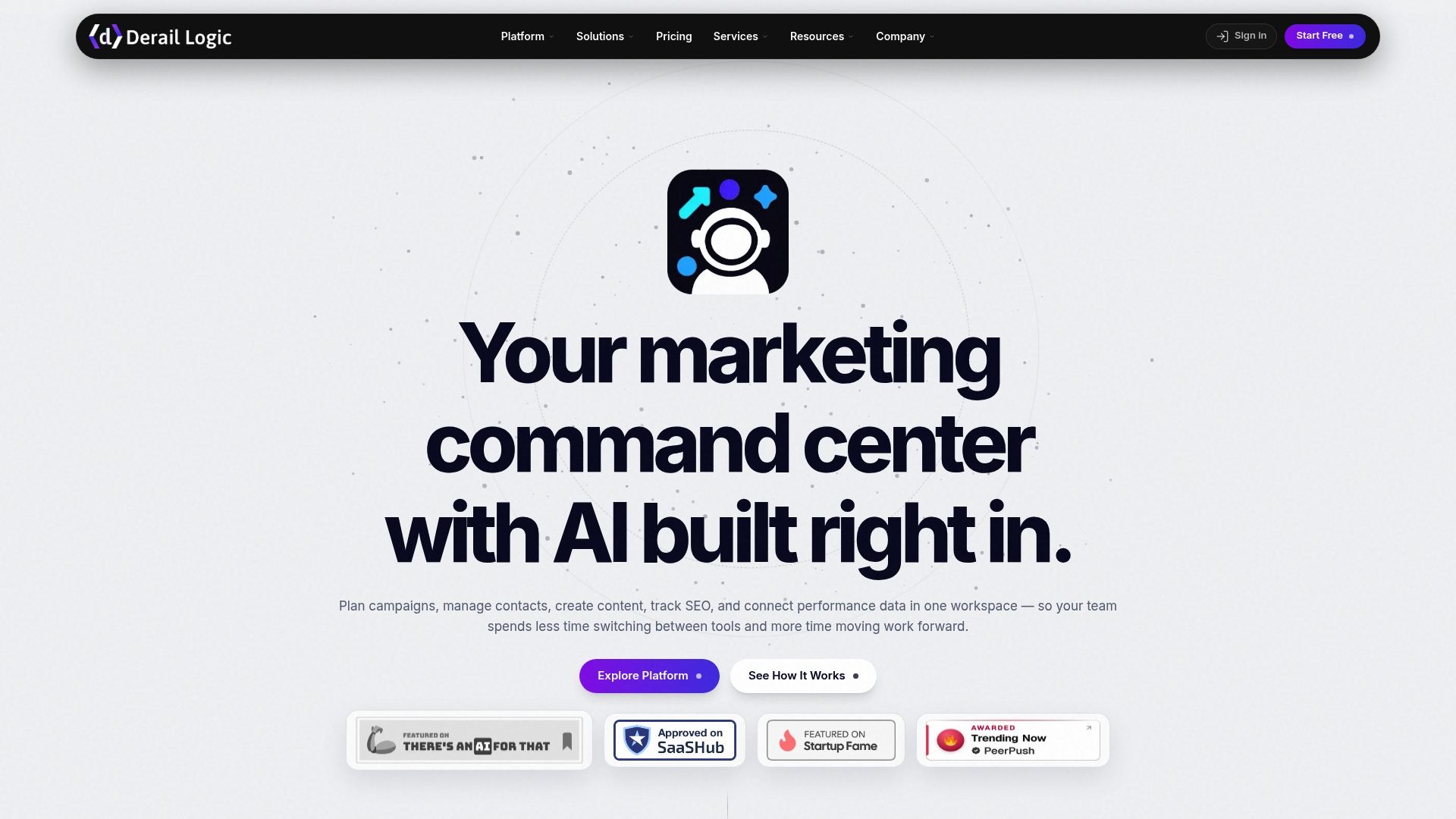
MartechAI’s intelligent CRM handles the custom field mapping and real-time sync described earlier, without a separate middleware layer to maintain. Historical order import runs through the same unified system, so your lifetime value and segment data stay accurate from day one instead of restarting at zero. The visual campaign studio connects directly to the automations covered in this guide, abandoned cart, renewal reminders, win-back sequences, so triggers and actions live in one workflow instead of bouncing between a WooCommerce plugin and a separate automation tool.
For e-commerce teams tired of babysitting sync logs across three different dashboards, start with Marketing Automation to see how campaign triggers connect to your CRM data, then try Autopilot to see which customer events it surfaces automatically without manual rule-building. A free trial gets you into the platform to test it against your own store’s data before you commit to anything.
Where To Verify Integration Details Yourself
- HubSpot for WooCommerce documentation covers native versus external sync architecture and plan-tier limitations in detail.
- WP Fusion’s WooCommerce CRM tutorial explains historical import methods and tag-based automation setup.
- Refinery CRM’s product page documents HPOS and WooCommerce Subscriptions compatibility for native plugin buyers.
- Integrazo’s plugin page details OAuth setup, field mapping, and sync logging for middleware-based integrations.
- WooCommerce SEO automation resources are worth reviewing if your CRM data also feeds retention-focused SEO campaigns.
Sources
FAQ
What Is the Best CRM for a Small WooCommerce Store?
For most solo operators and small teams, a native plugin like Refinery CRM paired with AutomateWoo covers customer profiles and behavior-triggered automation without a monthly SaaS fee. Growing stores that need cross-channel campaigns and unified analytics typically outgrow that setup and benefit more from a connected platform like MartechAI.
Does a WooCommerce CRM Slow Down My Store?
A well-built native plugin should not, since tools like Refinery CRM load their assets only inside WP Admin and keep CRM queries away from the storefront. External SaaS integrations rarely affect storefront speed either, since syncing happens through background API calls, not page-load requests.
Will My Historical Order Data Automatically Sync To a New CRM?
No. Most integrations start syncing from the installation date forward, so historical orders need a separate import through CSV, a middleware tool like WP Fusion, or a vendor-assisted migration.
How Do I Know If an Integration Supports My Custom Checkout Fields?
Ask the vendor directly and test it with a real order before buying, since standard field mapping is common but custom field support varies widely between tools.
Is WooCommerce CRM Integration Compatible With Subscriptions and HPOS?
Compatibility varies by tool, so check vendor documentation explicitly. Refinery CRM, for example, advertises direct support for both WooCommerce Subscriptions and HPOS order storage.